
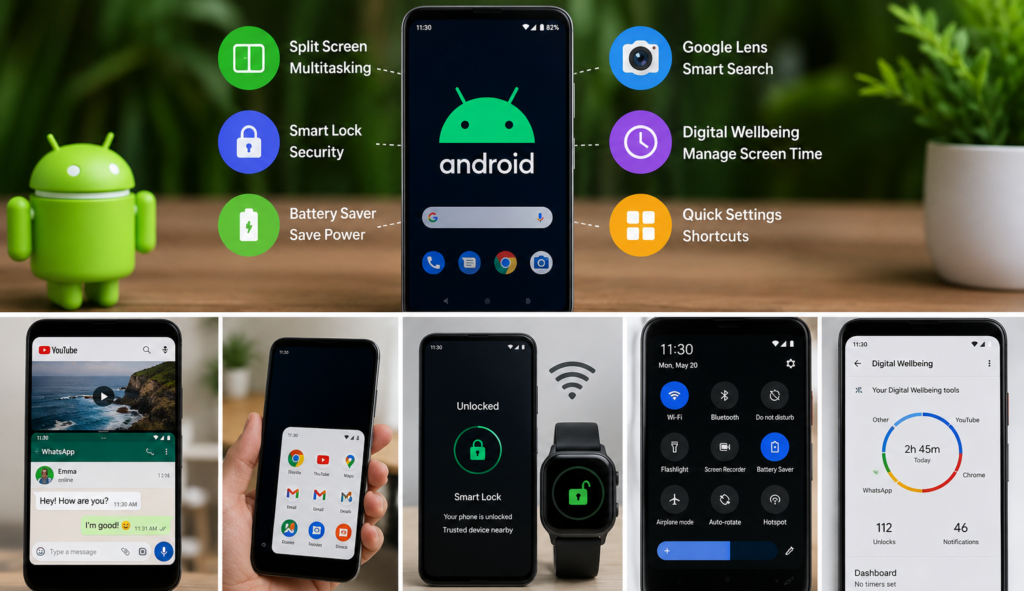
Most people use their smartphones on autopilot, navigating through endless taps, swipes, and app menus to complete simple daily tasks. Yet beneath the shiny icons and standard out-of-the-box configurations lies an exceptionally powerful layer of automation, hidden hardware gestures, and deep system controls. Transforming your phone from a source of constant friction into a genuinely intelligent assistant doesn’t require downloading dozens of questionable third-party utilities. Instead, it relies on optimizing the built-in capabilities of modern operating systems like iOS and Android.
By setting up smart triggers, organizing your digital environment, and utilizing contextual features, you can reclaim hours of lost time, eliminate repetitive manual input, and keep your attention focused on what actually matters.
Automated Workflows That Work in the Background
The most transformative change you can make to your mobile device is setting up background routines that trigger automatically without any input from you. Both Apple’s iOS and Android have quiet, highly robust automation engines built directly into their operating systems.
Geofenced Environment Controls
Manually toggling your phone’s settings every time you step into an office, library, gym, or house is a waste of mental energy. Location-based rules alter your device’s profile based on physical GPS boundaries or active Wi-Fi connections.
- Workplace Focus: Configure a location trigger that automatically sets your device to vibrate, lowers media volume, turns off non-essential social notifications, and shifts your home screen layout to reveal productivity tools the moment you park near your office.
- Home Arrival: Create a reverse automation. As soon as your phone connects to your personal home Wi-Fi network, it can automatically disable focus modes, set your smart home devices to evening temperatures, and route work communication to silent.
- Location-Based Reminders: Instead of setting time-based alerts that pop up when you are nowhere near where you need to be, link task reminders to locations. For instance, set a location rule so your phone prompts you to pick up dry cleaning or ask a coworker a specific question the precise moment you arrive at that specific destination.
Context-Aware Media Handling
Your phone can adapt its behavior based on connected hardware accessories.
- You can configure an automation rule that launches your preferred audio app, adjusts the output volume to a pre-set level, and opens a turn-by-turn navigation service the second your phone connects to your car’s Bluetooth system.
- Similarly, plugging in wired headphones or connecting wireless earbuds can be programmed to launch a specific workout playlist or podcast player instantly, skipping the step of finding and opening the app manually.
Unlocking Unused Hardware Triggers
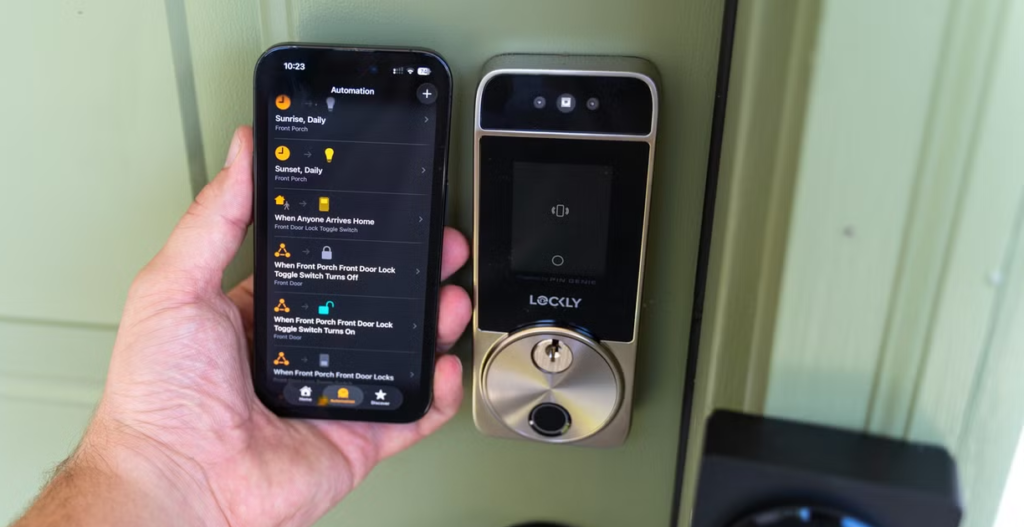
Modern mobile hardware contains various sensors—accelerometers, light sensors, and touch surfaces—that remain underutilized by default factory settings. Unlocking these provides immediate physical shortcuts to your most frequent actions.
Back-Panel Tap Gestures
Both iOS and Android can detect physical taps on the back glass of your phone using internal motion sensors.
- iOS Back Tap: Accessible via Accessibility settings, this allows you to map double-tap and triple-tap actions. A double-tap on the back of the case can be configured to take a quick screenshot, open a password manager, or activate your camera. A triple-tap can toggle your flashlight, pull up a digital wallet, or trigger a custom multi-step shortcut.
- Android Quick Tap: Found within system gesture controls, this functions similarly on Android devices. You can map a firm double-tap on the back panel to pull down your notification shade, split your screen between two running applications, or instantly launch a voice recorder for fast voice notes.
Custom Physical Button Re-Mapping
The side power button or action buttons present on newer devices do not need to be restricted to turning the screen off or summoning voice assistants.
- Reconfigure the press-and-hold or double-press behavior of physical hardware keys. Mapping a quick double-press of the power key directly to a direct mobile pay scanner or a favorite messaging contact gets you into the action without waking up the full display screen.
Speeding Up Text and Communication Friction
Typing out long, repetitive strings of alphanumeric text on a small glass surface is slow and error-prone. Building a personal library of keyboard shortcuts and leveraging contextual optical character recognition (OCR) streamlines communication dramatically.
System-Wide Text Expansion
Text expansion settings allow short keyword triggers to instantly convert into long strings of formatted text, standard replies, or technical information across any app on your device.
| Trigger Snippet | Expanded Text Output | Typical Practical Use Case |
@@ | name.surname@email.com | Rapid form fills, online checkouts, and logins. |
pnum | +1 (555) 019-2834 | Dropping your contact number into messages or forms. |
haddr | 1234 Maple Avenue, Suite 100, City, ST 12345 | Address sharing for rideshares or deliveries. |
m link | [https://meet.platform.com/user-room](https://meet.platform.com/user-room) | Instantly dropping a personal video meeting link into chats. |
tyy | Thanks for reaching out! I'm reviewing this now. | Professional messaging and fast email triage. |
Camera-Based Text and Data Extraction
Manual typing can be almost entirely eliminated when dealing with real-world paper, signs, or physical receipts.
- Live Camera Copying: Pointing your native phone camera at any physical block of text—whether it is a password printed on the back of a router, a restaurant menu, or a physical document—brings up an immediate live selection tool. You can copy the text straight from the camera view directly into your device’s clipboard.
- Instant Action Parsing: Modern phone cameras automatically recognize formatted data inside real-world environments. Hovering over a phone number on a physical business card allows you to dial it with one tap; hovering over a physical street address brings up map directions instantly; and scanning a handwritten Wi-Fi key can log you onto the network without manually entering individual characters.
Organizing Notifications and Home Screen Layouts
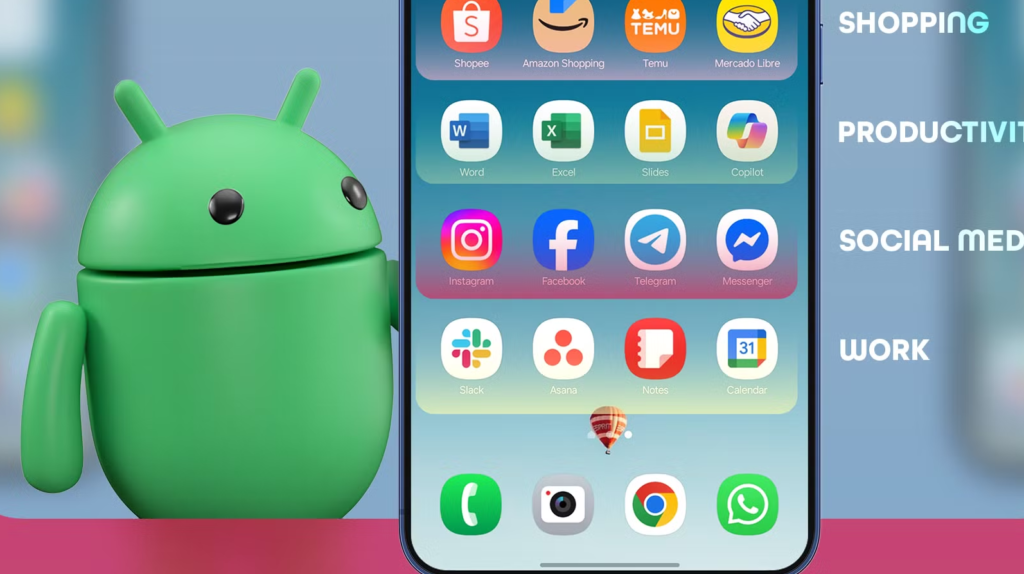
A primary source of smartphone friction is visual noise. Notifications and cluttered icon grids constantly fight for your attention, converting a productivity device into an endless distraction machine.
Scheduled Notification Summaries
Receiving a ping every time a non-essential app wants your attention shatters your focus throughout the workday.
- Route non-urgent categories like shopping apps, social updates, promotional emails, and gaming alerts into a scheduled summary batch.
- Instead of receiving thirty individual alerts spread across your afternoon, your phone holds them silently in the background and delivers a clean, organized digest at specific times you choose, such as 8:30 AM and 5:30 PM.
- Set critical exceptions for essential contacts, calendar alerts, or security notifications so urgent communications break through immediately while low-priority noise stays queued.
Minimalist Visual Design Strategies
Reducing screen clutter changes how you interact with your device.
- App Library and Search-First Navigation: Clear secondary and tertiary app icons off your home screen entirely. Keep only your core daily essentials on the main page. For everything else, train yourself to swipe down and search by typing the first two letters of the app name. This reduces visual browsing and stops you from opening distracting apps on impulse.
- Smart Stacks: Combine multiple widgets into a single physical footprint on your home screen. A single square widget area can rotate dynamically throughout the day, displaying your morning calendar schedule at 8:00 AM, your active music controls at midday, and your habit tracker or weather outlook by evening.
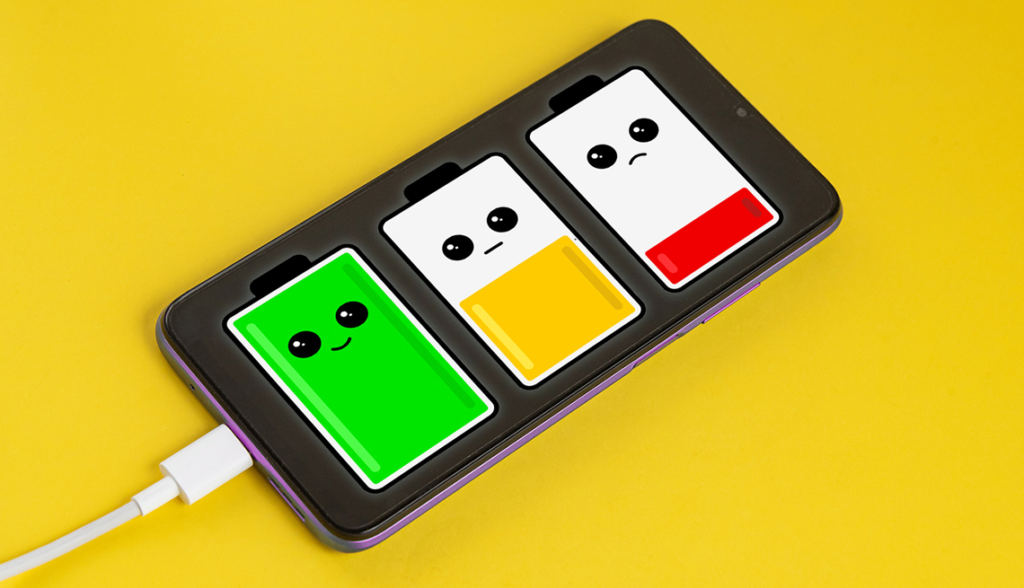
A smartphone is only as smart as its remaining battery percentage. Modern software provides subtle settings designed to preserve lithium-ion battery health over multiple years and keep system performance running smoothly without requiring daily maintenance.
Adaptive Charging Rules
Leaving a device plugged into a charger for six hours after it hits 100% generates heat and degrades battery chemistry over time. Enable adaptive charging modes within your battery settings menu. The operating system will learn your daily sleep schedule, charge the device rapidly to 80%, pause the current overnight, and then complete the remaining 20% right before your morning alarm goes off.
Automated Power Preservation
Rather than waiting for your phone to display a low-battery warning when you are out and about, establish automated power rules. Set an automated trigger that automatically places your device into Low Power Mode the moment battery levels hit 45%. This throttles background app refreshing, reduces peak processor power draw, and dims background display elements early, extending your remaining battery life significantly without abruptly cutting off your connectivity late in the evening.
Mastering these built-in software mechanics converts your device from a reactive gadget into a tailored tool. By letting automated scripts handle recurring tasks, utilizing physical triggers, and cleaning up visual clutter, your phone operates faster, stays out of your way, and works entirely around your routine.
FAQ’s
1. What are app hacks?
App hacks are useful tips, shortcuts, and hidden features that can help you use apps more efficiently.
2. Are app hacks safe to use?
Yes, when they involve legitimate features and settings provided by the app itself.
3. How can I find hidden app features?
Check the app’s settings, explore menus, read official help pages, and keep the app updated.
4. Can app hacks save time?
Yes. Shortcuts and useful features can reduce repetitive steps and make everyday tasks faster.
5. Should I download modified apps for extra features?
It is safer to use official versions because modified apps can create security, privacy, or account risks.