

Most of us open the same dozen smartphone apps every single day, yet we barely scratch the surface of what they can actually do. We download a tool to solve one immediate problem, learn the two or three primary buttons required to get by, and stick with that exact routine for years. Meanwhile, mobile developers constantly quiet-pack these apps with hidden shortcuts, automation triggers, and deep settings aimed at shaving friction off our daily digital lives.
Unlocking these capabilities doesn’t require technical tinkering or a degree in computer science. With a few targeted adjustments to your settings and a slight shift in how you navigate your device, you can streamline your digital routine, reclaim lost storage, extend your battery life, and stop fighting with your phone.
Master Your App Ecosystem
Building a smooth, low-friction mobile experience starts with cutting through ambient digital noise and organizing your device to serve your actual priorities.
                  EFFICIENT DIGITAL WORKFLOW

  [ Audit Settings ]  ---> Prune notification noise & revoke background access
         |
         v
  [ Organize Screen ] ---> Group by function & pin high-utility widgets
         |
         v
  [ Streamline Search ] -> Bypass manual scrolling with universal search
         |
         v
  [ Daily Execution ] ---> Reclaim focus, save battery, and speed up actions
1. Prune Your Notifications
An endless stream of pinging alerts is the single fastest way to fragment your attention span. Instead of turning off alerts for an entire app, dive directly into the notification categories within the app’s internal settings. Most platforms allow you to turn off marketing pushes, social nudges, and engagement traps while keeping essential direct messages, calendar reminders, or security alerts fully active.
2. Leverage Home Screen Widgets
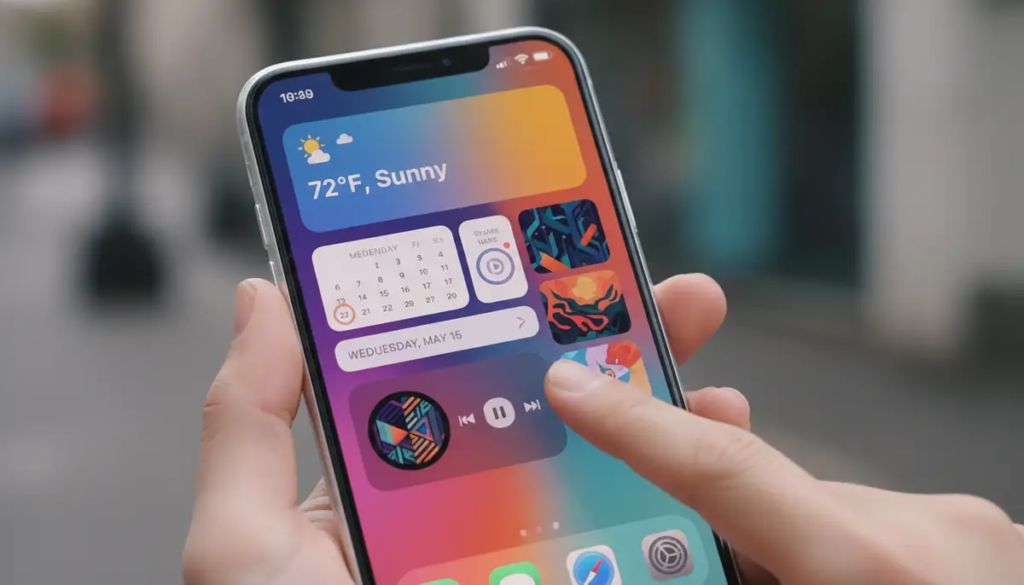
Opening an entire app just to check a single piece of information—like tomorrow’s weather forecast, an upcoming flight, or a simple to-do list—invites unwanted distraction. Pinned home screen widgets render real-time info at a glance, letting you capture what you need without getting sucked into infinite feeds or message threads.
3. Default to Global Search
If you spend more than three seconds scrolling through dense icon pages, photo albums, or deep file hierarchies, you are wasting energy. Swipe down on your home screen to launch your phone’s universal search bar. Typing a brief keyword, date, or contact name is almost always faster than hunting down buried tools manually.
Hidden Features for Everyday Efficiency
| Feature Category | Low-Effort App Shortcut | Practical Daily Benefit |
|---|---|---|
| Instant Execution | Long-Press App Icons: Tap and hold an app icon on your home screen to reveal hidden context menus. | Bypasses 2–3 navigation taps by jumping straight to taking a photo, opening a new tab, or messaging a top contact. |
| Data & Storage | Clear App Cache & Offload: Open system storage settings to wipe cached temporary files or offload unused binaries. | Instantly reclaims gigabytes of internal storage without deleting your saved account data or settings. |
| Input & Dictation | Voice Typing & Dictation: Tap the microphone icon on your keyboard to use built-in voice engines for longer drafts. | Drafts long-form messages and notes up to three times faster than standard thumb typing. |
| Workflow Logistics | Customize Share Sheets: Edit your device’s global “Share” menu to pin your most frequent transfer destinations to the top row. | Routes photos, links, and documents to notes apps, cloud drives, or contacts in a single tap. |
Security, Privacy, and Device Optimization

- Audit App Permissions Regularly: Apps frequently request access to your camera, precise location, contacts, and background microphone during initial setup. Periodically review your phone’s Privacy menu to revoke background access for any app that doesn’t strictly need it to function.
- Enable System-Wide Dark Mode: Setting your system interface and primary apps to Dark Mode reduces eye strain in low-light conditions. On devices equipped with OLED or AMOLED screens, displaying darker pixels also yields noticeable daily battery savings.
- Verify Built-In Cloud Backups: Never assume an app is automatically preserving your data in the cloud. Open the account settings of your note-taking tools, voice recorders, and messaging apps to confirm that auto-sync is explicitly toggled on.
- Keep Your App Collection Lean: Delete tools you haven’t opened in the past three months. Carrying a bloated library of forgotten software drains background battery, hogs local storage space, and creates unnecessary privacy exposures.
A truly great app setup isn’t the one loaded with the highest number of downloads. It is a quiet, streamlined setup that helps you accomplish what you need with as little friction as possible.
Learn Your Favorite App’s Shortcuts
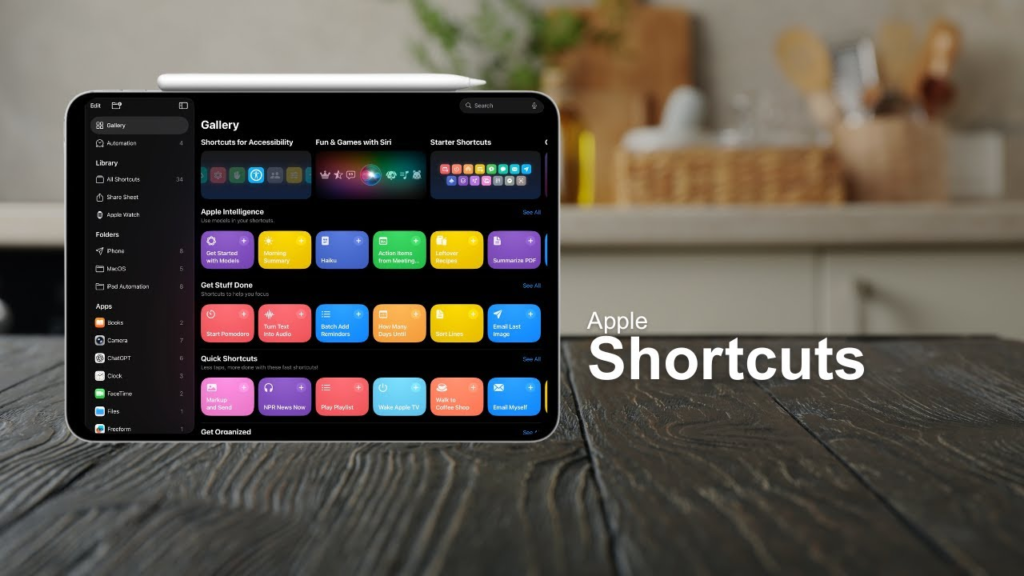
Many apps support shortcuts that can save several taps.
Depending on the app and device, you may be able to long-press an app icon to access quick actions. Some apps also support keyboard shortcuts when used on a computer or tablet.
Look for shortcut menus or quick actions for features you use frequently.
If you perform the same action every day, finding a faster way to do it can save a surprising amount of time over the course of a year.
Use Search Instead of Scrolling
If an app contains lots of information, searching is usually faster than manually scrolling.
This can be particularly helpful in messaging, email, photo, shopping, note-taking, and file-management apps.
Instead of spending several minutes looking through old content, use keywords related to what you need.
Good search habits can turn a large collection of information into something much easier to manage.
7. Take Advantage of Widgets
Widgets can provide useful information without requiring you to open an app.
Depending on your device, widgets can display calendars, weather, reminders, notes, tasks, music controls, or other information.
Choose widgets based on what you genuinely need to see regularly.
Too many widgets can make your screen cluttered, so focus on the information that saves you time.
Use Dark Mode When You Prefer It
Many apps offer dark mode or follow your device’s appearance settings.
Dark mode can make an interface more comfortable for some people, particularly in low-light environments. Whether you prefer light or dark mode is largely a matter of personal preference.
Check individual app settings if an app does not automatically follow your device’s appearance.
FAQs
1. What are app hacks?
App hacks are simple tips, shortcuts, and hidden features that help you use apps more efficiently.
2. How can I make my apps easier to use?
Customize settings, organize apps, adjust notifications, and learn useful shortcuts.
3. Are app shortcuts useful?
Yes, shortcuts can reduce taps and save time on tasks you perform frequently.
4. How can I improve app privacy?
Review app permissions and only allow access to information or features an app genuinely needs.
5. How often should I check app settings?
Review important settings after major updates and occasionally check permissions and notifications.