
Smartphones are essentially extension cords for our daily lives. We use them for everything from managing bank accounts and streaming music to tracking workouts, editing photos, and checking off work tasks. Yet most people barely scratch the surface of what their favorite apps can actually do, sticking strictly to the default settings out of habit.
You rarely need a shiny new app to fix a clunky digital routine. More often than not, a quick adjustment to a hidden menu, a single notification toggle, or a practical shortcut is all it takes to make the tools you already rely on run significantly smoother.
What Are App Hacks?
An “app hack” isn’t a complex workaround or a shady software trick. It is simply any built-in setting, feature, or habit that makes an application work better for your specific workflow.
These optimizations usually boil down to:
- Keyboard shortcuts and quick gesture controls
- Deeply buried setting adjustments
- Notification filtering and scheduled summaries
- Privacy and permission management
- Advanced search queries and filters
- Organization systems like tagging, pinning, and folders
- Built-in automation tools
- Interface customization and accessibility tweaks
- Offline content management
Explore the Settings Menu
The absolute easiest way to upgrade an app is to spend five minutes inside its settings. Most people accept factory defaults, which are generally tuned to profit the developer rather than serve the user.
Take a moment to poke around the settings of your three most-used apps. You will often uncover options to limit background data, turn off intrusive tracking, adjust display layouts, or change how content is sorted. Focus on fixing specific annoyances rather than tweaking every single toggle.
Reduce Unnecessary Notifications
Pings, badges, and banners are designed to fight for your attention. While real-time alerts for direct messages or calendar appointments are genuinely helpful, promotional pop-ups and feature updates are pure noise.
Be ruthless with your notification permissions. Keep alerts active for critical communications, but turn off marketing, recommended content, and non-urgent activity feeds. Many phones also let you group lower-priority notifications into a quiet daily digest, keeping your screen clutter-free throughout the work hours.
Use Search More Effectively

Endlessly scrolling through old chat histories, photo libraries, or cloud storage folders wastes an immense amount of time. Mastering basic search operators can bypass the headache entirely.
Many modern search bars allow you to filter results by specific parameters, such as:
- Sender or recipient name
- Approximate date ranges
- File formats (PDF, PNG, CSV)
- Location metadata
- Specific keywords or tags
Learning how your favorite app indexes information turns minutes of frustrating searching into a two-second task.
Learn Keyboard Shortcuts
If you use a tablet with a physical keyboard or work heavily on a desktop, keyboard combinations are the ultimate efficiency upgrade.
Basic shortcuts for copying, pasting, undoing, opening new tabs, and pulling up search bars quickly become muscle memory. Pick five commands you find yourself constantly clicking through menus to perform, and commit them to memory this week. The cumulative time you save by taking your hand off the trackpad is substantial.
Make Use of Widgets
Widgets bring live information directly to your home screen, saving you from having to open an app just to check a single detail.
A well-planned home screen setup might feature a glanceable calendar, a quick-add task list, current weather conditions, or immediate playback controls for audio. However, restraint is key here. Packing your screen with dozens of active widgets creates visual chaos, defeating the purpose.
Take Advantage of Built-In Automation
Most modern operating systems and apps feature simple automation tools that handle repetitive tasks without human intervention.
Think about the manual tasks you repeat daily: sending a “heading home” text, organizing downloaded receipts, or setting a quiet mode at bedtime. Apps can easily automate these triggers. The goal is to offload mindless digital admin work so you don’t have to think about it.
Organize Your Apps
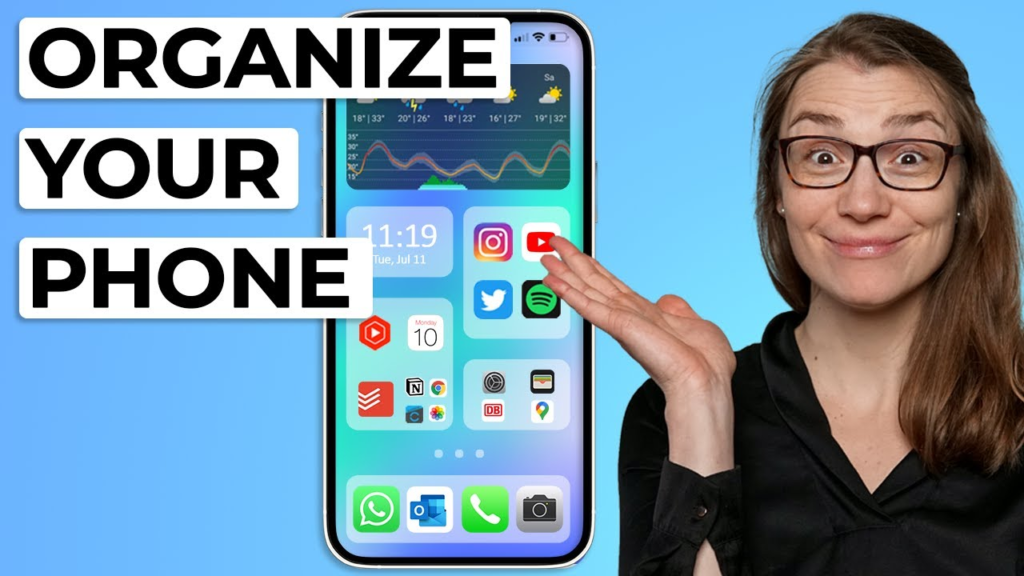
A cluttered home screen creates unnecessary mental friction every time you unlock your phone.
Group your applications into logical folders based on utility—such as Work, Finance, Travel, Media, or Utilities. Keep your primary home screen dedicated strictly to the handful of apps you touch every day, pushing everything else into secondary screens or the main app library. Periodically audit your phone and delete anything you haven’t opened in a month.
Use Dark Mode When It Suits You
Dark mode isn’t just an aesthetic choice. In dim environments, switching to a dark interface reduces eye strain and makes reading far more comfortable. On devices with OLED screens, dark backgrounds can also offer a slight boost to battery life.
Set your phone to automatically toggle dark mode on at sunset and off at sunrise so your screen naturally adapts to your environment.
Download Content for Offline Use
Relying on a constant, fast cellular connection will eventually leave you stranded. Whenever you travel, commute, or head into areas with spotty service, prepare your apps beforehand.
Take advantage of offline downloads for:
- Navigation maps for entire cities or regions
- Playlists, podcasts, and audiobooks
- Travel itineraries, tickets, and boarding passes
- Important work documents and reading lists
Checking your offline storage allocations before leaving home prevents frustrating load screens when you have no signal.
Manage Storage Before It Becomes a Problem
Phones fill up surprisingly fast with cached files, high-resolution media, temporary downloads, and forgotten applications. Running out of storage slows down performance and prevents software updates from installing.
Regularly check your device’s storage breakdown. Most operating systems highlight “large files” or “infrequently used apps” for quick cleanup. Clear out temporary cache files within heavy apps to reclaim gigabytes of space without losing important data.
Use Cloud Features Carefully
Cloud storage is incredible for syncing files seamlessly across multiple devices and providing a safety net if your phone gets lost or damaged. However, the cloud is not an excuse for digital hoarding.
Treat your cloud drive like a physical filing cabinet. Use clear folder hierarchies, label files with descriptive names, and clear out duplicate photos or temporary scans regularly so you don’t end up paying for extra storage tiers you don’t actually need.
Improve Privacy Settings
Privacy should never be an afterthought. Apps routinely request access to your location, contact list, camera, microphone, and local network during initial setup.
Periodically review app permissions in your system settings. A ride-sharing app obviously needs your location while you are using it, but a basic puzzle game or photo editor has no business tracking your background location 24/7. Revoke unnecessary permissions freely; if an app genuinely needs a feature later, it will simply ask again.
Customize Your Experience
Customizing an app to your visual and physical needs makes daily interaction significantly better.
Explore settings that let you adjust:
- Text sizes and bold contrast
- Layout density and line spacing
- Default audio playback speeds
- Captions and screen reader options
Accessibility settings aren’t strictly for users with disabilities. Larger text, voice dictation, and custom touch controls can make an app easier for anyone to navigate.
Use Voice Features
Voice dictation has improved dramatically over the past few years. Talking is almost always faster than typing out long messages on a small glass keyboard, making voice commands ideal for quick drafts, setting reminders, or taking hands-free notes while driving or cooking.
Keep Apps Updated
Outdated apps run slower, crash more often, and miss out on crucial security patches. Enabling automatic updates ensures you always have the latest bug fixes and performance improvements.
That said, when a major redesign rolls out, take a minute to read through the release notes. Understanding where tools have been moved saves you from scrambling when you need to get something done quickly.
Be Careful With Third-Party Hacks
While searching for shortcuts is great, be extremely cautious with third-party tools, unofficial app stores, or browser extensions claiming to unlock “hidden premium features.”
Never install unverified profiles, disable system security settings, or hand over login credentials to a website promising modified apps. A genuine app hack operates safely within the official software boundaries without exposing your personal data to risk.
Create Your Own Shortcuts
Once you understand how your daily apps work, look for personal bottlenecks. If you constantly send the same status update, type out your address, or fill in standard email responses, set up text expansion shortcuts or saved templates. Reducing a multi-step task to a two-letter shortcut adds up to massive time savings over the course of a month.
App Hacks for Better Productivity
Productivity tools only work if you keep the system simple. Start your day by checking a single centralized task list or calendar rather than bouncing between four different management apps.
Break larger projects down into bite-sized action items and assign clear deadlines. If a task management system feels too complex or tedious to update, discard it. The best system is always the simplest one you will actually use consistently.
App Hacks for Travel

Save digital copies of confirmation codes, hotel addresses, and emergency contacts in a pinned note or dedicated travel folder that works offline. Set up calendar alerts for check-in windows and flight updates so you aren’t constantly checking screens in a busy terminal. A little organization upfront lets you focus on enjoying the journey.
Travel apps can transform a stressful trip into a smooth experience if prepared correctly.
FAQ’s
1. What are app hacks?
App hacks are simple tips, shortcuts, and settings that help you use apps more efficiently.
2. How can app hacks save time?
Shortcuts, automation, search tools, and quick settings can reduce repetitive tasks.
3. Are app hacks safe?
Built-in features are generally safer than unofficial hacks or tools from unknown sources.
4. How can I discover hidden app features?
Explore the app’s settings, help section, and recent update notes.
5. Should I use every app feature?
No. Focus on features that genuinely make your daily tasks easier.