
Smartphones serve as the primary computing devices for millions of people worldwide. We rely on them to handle daily communications, manage schedules, process financial transactions, navigate transit systems, capture photos, and access work systems. However, because mobile application ecosystems are so vast, most users rely on only a fraction of their apps’ functional capabilities, rarely venturing beyond basic default settings.
Increasing the utility of your phone does not require constantly downloading new software. In fact, accumulating too many specialized tools often creates digital clutter and performance friction. Optimizing built-in system settings, taking advantage of hidden contextual shortcuts, and refining application configurations can significantly streamline daily digital tasks.
Native Navigation and Workspace Optimization
1. Home Screen Architecture
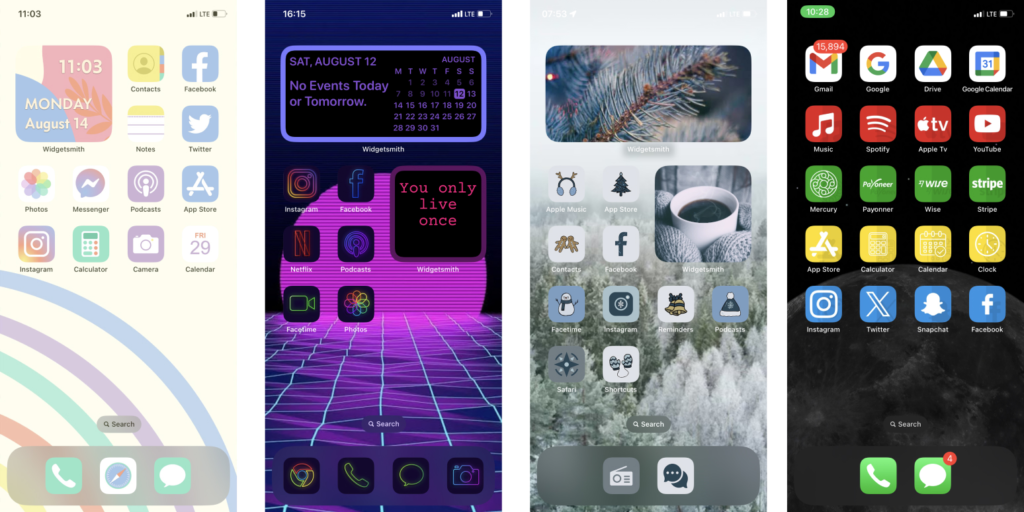
A cluttered home screen creates unnecessary visual fatigue and slows down simple tasks. Instead of allowing newly installed applications to populate your display screens randomly, structure your workspace based on operational frequency and physical reach.
- Primary Thumb Zone: Reserve the lower third of your primary screen for high-frequency tools like messaging, primary email, calendar, and phone apps.
- Categorized Folders: Group secondary applications into functional categories on a single secondary screen—such as Financial, Transit, Utilities, and Media—to keep app drawers clean.
- Site-Specific Web Shortcuts: If you frequently visit specific web pages for work or news, save them directly to your home screen using your mobile browser’s “Add to Home Screen” feature instead of installing standalone apps.
2. App-Icon Contextual Shortcuts
Most modern mobile operating systems support long-press contextual menus on home screen icons. Pressing and holding an app icon reveals quick actions that bypass the application’s primary home screen entirely.
- Messaging Apps: Jump directly to a specific contact thread or start a new message.
- Camera Tools: Launch straight into selfie mode, portrait orientation, or video recording.
- Navigation Apps: Instantly start routing to pre-configured addresses like “Home” or “Work.”
- Utility Applications: Open document scanners, expense loggers, or search bars with a single tap.
Managing Distractions and Enhancing Focus
Notification Triage
Unregulated notifications are one of the primary sources of constant cognitive disruption. A default app installation often grants permission for marketing alerts, social interactions, and system updates that provide minimal value.
To create a balanced digital environment, categorize notifications into three operational tiers:
| Alert Tier | Notification Types | System Configuration |
|---|---|---|
| Immediate | Direct messages, phone calls, calendar alerts | Sound + Haptic + Lock Screen Banner |
| Passive | Email, news digests, delivery updates | Silent + Deliver in Notification Center Only |
| Blocked | Promotional offers, app engagement prompts, game alerts | Fully Disabled |
Custom Focus Profiles
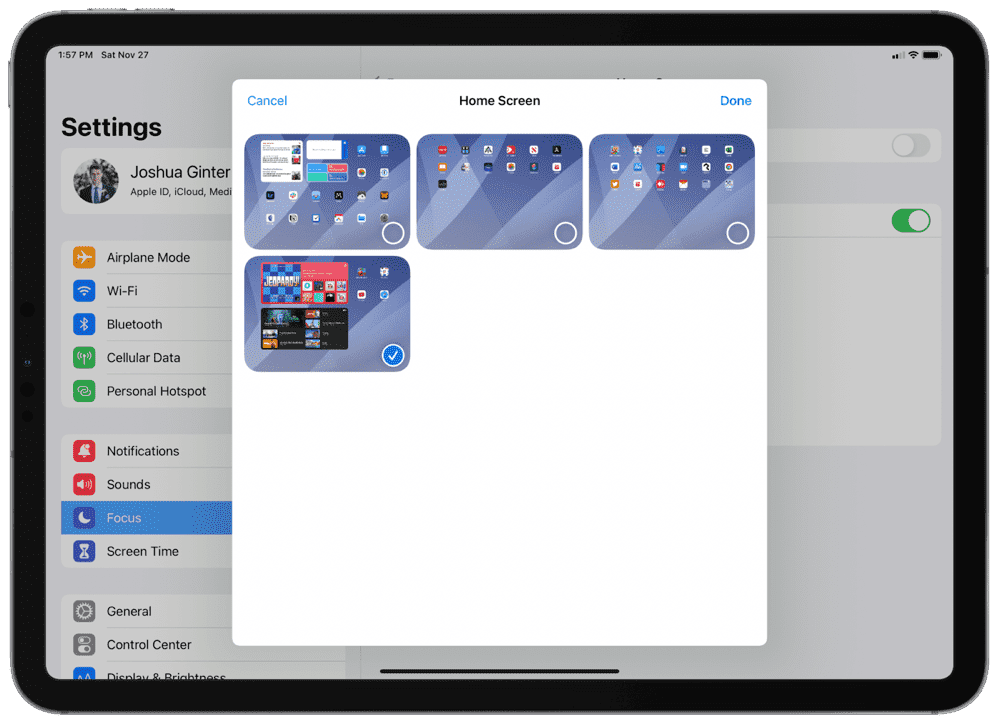
Modern mobile operating systems allow you to set up specialized Focus modes tied to specific locations, times, or activities. Rather than toggling settings manually, configure automated profiles:
- Work Mode: Automatically silences social media apps, games, and non-essential personal contacts during business hours while keeping team communication channels active.
- Personal/Evening Mode: Silences work-related messaging and email platforms after working hours to draw clear boundaries between professional and personal time.
- Sleep Mode: Restricts incoming calls exclusively to favorited family contacts or repeated emergency calls, turning off screen wake features entirely.
System Efficiency Matrix
| Feature | Primary Use Case | Key Operational Advantage |
|---|---|---|
| Search Functionality | Locating buried files, emails, or photos | Eliminates manual scrolling through large archives. |
| Voice Dictation | Writing long-form notes or emails on the go | Converts spoken language to text faster than manual typing. |
| Native Web Shortcuts | Accessing infrequently used web services | Prevents phone clutter from single-use applications. |
| Built-in Tools | Scanning documents, recording voice notes, basic math | Reduces dependence on third-party apps that track data. |
| Accessibility Menus | Screen magnification, text scaling, back-tap actions | Improves physical comfort and interface navigation. |
Data Management, Privacy, and Security
1. Audit Application Permissions
Applications frequently request broad system access during initial setup. Over time, these permissions can leave background processes running that collect location data, access contact books, or monitor local network traffic unnecessarily.
Periodically review system privacy logs:
- Location Services: Change continuous background location tracking (“Always Allow”) to “While Using the App” or “Ask Next Time” for apps that do not require constant GPS mapping.
- Microphone and Camera: Strip access from tools that do not explicitly require media input to function, such as basic calculators, offline games, or simple document readers.
- Contacts and Media: Limit photo library permissions to “Selected Photos” rather than giving full storage access to social media or editing software.
2. Centralized System Backups and Storage Management
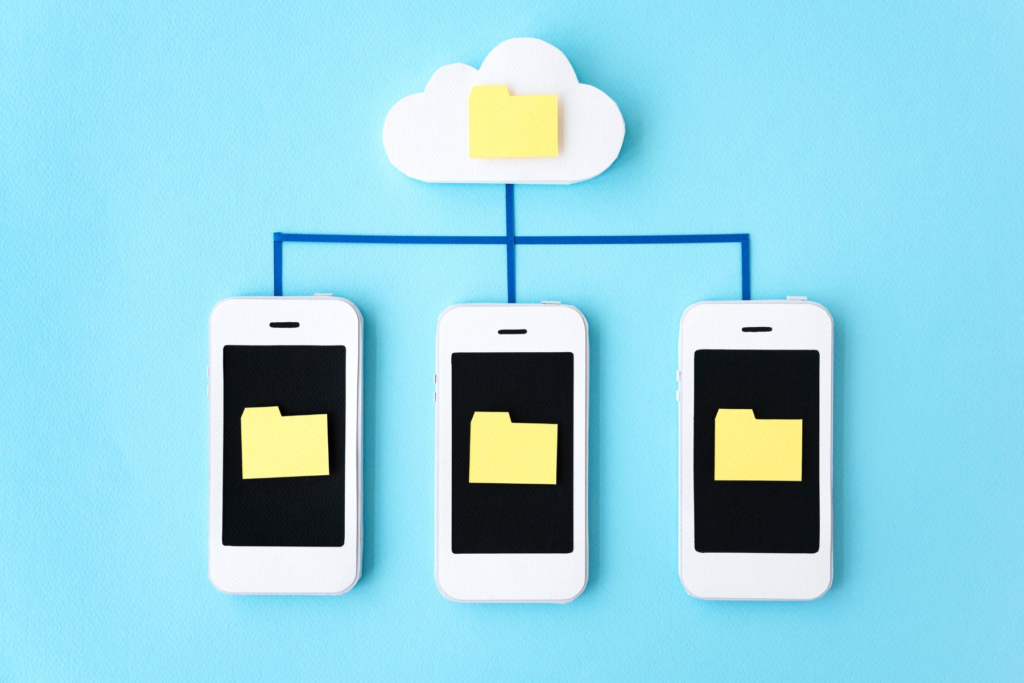
Relying on local phone storage without proper backup strategies leaves critical data vulnerable to physical loss, hardware failure, or device theft.
Ensure native cloud backups are enabled for camera rolls, contact lists, system settings, and primary document folders. Check remaining cloud storage allocations periodically to confirm that automatic backups are running smoothly. For extra security, store secondary offline copies of important documents on external drives or secondary cloud accounts.
3. Basic Security Protocols
Protecting mobile accounts requires maintaining basic security habits:
- Enable two-factor authentication (2FA) across all primary accounts, opting for security keys or authenticator apps over basic SMS verification where possible.
- Use a dedicated password manager to generate and store complex, unique passwords for every application login.
- Avoid entering sensitive information like credit card numbers or account passwords while connected to unverified public Wi-Fi networks without protection.
Leveraging Built-In Operatincg System Tools

Before downloading a new application to address a minor issue, explore the built-in utilities already present on your phone. Most modern devices come pre-installed with robust, privacy-focused tools:
- Document Scanners: Integrated directly into default notes apps or file managers, eliminating the need for third-party scanning software that adds watermarks.
- Screen and Audio Recorders: Built into system control panels for quick capture of call details, interface demonstrations, or voice memos.
- Built-in Calculators and Unit Converters: Native search bars can often execute complex math equations, currency conversions, and unit calculations directly without opening a standalone app.
- System Sharing Extensions: The native share menu allows seamless data transfer between installed apps—such as sending a web page directly to a notes folder, generating a PDF from an email, or routing images directly to cloud storage.
By periodically clearing out unused applications, auditing permission settings, utilizing native system shortcuts, and configuring notification channels, you can transform your smartphone into a streamlined tool that supports your daily routine without creating unnecessary distraction.
FAQs
- What are app hacks?
App hacks are simple tips and tricks that help you use mobile apps more effectively. - How can app hacks save time?
They can help you use shortcuts, search features, settings, and automation to complete tasks faster. - Are app hacks safe to use?
Yes, when they use normal built-in app features and trusted settings. - How can I make my phone more useful?
Organize your apps, manage notifications, use widgets, and explore useful settings. - Should I download more apps for productivity?
Not always. Check your phone’s built-in features before installing another app.