
Smartphones function as the primary personal computing terminal for daily digital interactions. We rely on them to manage professional workflows, study, handle personal finance, navigate transit networks, capture images, and stay connected with community networks. However, because mobile app ecosystems are so vast, most users rely on default settings and basic interface options, leaving powerful built-in functionalities untapped.
Improving your mobile user experience does not require cluttering your device with additional single-purpose software. On the contrary, installing excess utilities often degrades battery health, consumes internal storage, and increases system complexity. Optimizing native operating system configurations, learning contextual shortcuts, and refining application parameters can transform your device into a far more effective daily tool.
Home Screen Architecture and Layout Optimization
1. Purpose-Driven App Categorization
A chaotic home screen filled with unsorted application icons adds unnecessary visual friction to simple tasks. Grouping apps based on operational context creates a far more efficient mobile workspace.
Structure your device using functional tiers:
- Primary Dock and Base Row: Place your highest-frequency tools—such as primary messaging, phone, calendar, and default browser apps—in the lower thumb reach zone.
- Categorized Folders: Group secondary applications into single-screen folders based on utility (e.g., Financial, Logistics, Work, and Media).
- System Drawer Storage: Keep low-frequency applications off your primary display entirely, accessing them only via the system-wide app drawer when needed.
2. Contextual Long-Press Shortcuts
Most modern mobile operating systems support long-press contextual menus on home screen icons. Holding down an application icon opens quick-action submenus that bypass the app’s main landing page.
Using these shortcuts allows you to:
- Open a specific messaging thread directly without scrolling through an inbox.
- Launch straight into document-scanning mode within your note-taking app.
- Initiate navigation to saved locations like home or work with a single tap.
- Instantly pull up payment QR codes or search functions in financial tools.
3. Home Screen Web App Integration
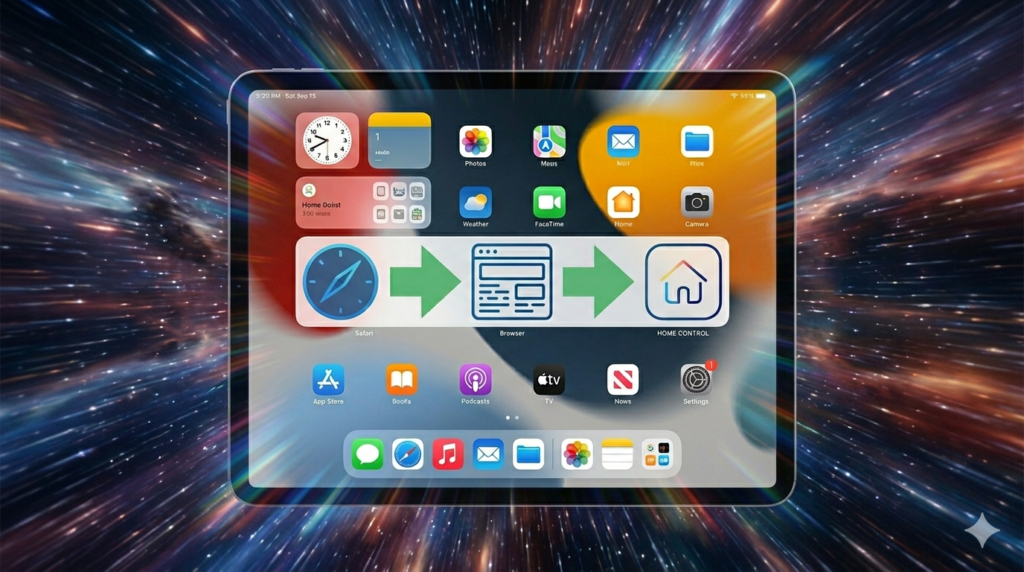
Installing a standalone app for every website you visit periodically creates unnecessary system clutter and background data usage. Modern mobile browsers allow you to pin web pages directly to your home screen as progressive web shortcuts. This gives you single-tap access to work portals, travel booking sites, or news outlets without filling your device with single-use applications.
Distraction Management and Focus Control
1. Strategic Notification Auditing
Unfiltered notifications are a major source of digital distraction. Applications frequently default to requesting broad alert permissions to push marketing updates, social prompts, and non-essential recommendations.
Auditing your notification parameters ensures that your screen lights up only for critical items:
| Notification Level | Content Type | Recommended Configuration |
|---|---|---|
| Urgent | Direct phone calls, urgent messages, calendar events | Sound, haptic feedback, and lock screen display |
| Passive | Standard emails, delivery updates, news briefs | Silent delivery to notification shade only; no lock screen wake |
| Disabled | Promotional alerts, social media likes, app recommendations | Completely revoked in system settings |
2. Custom Focus Profiles
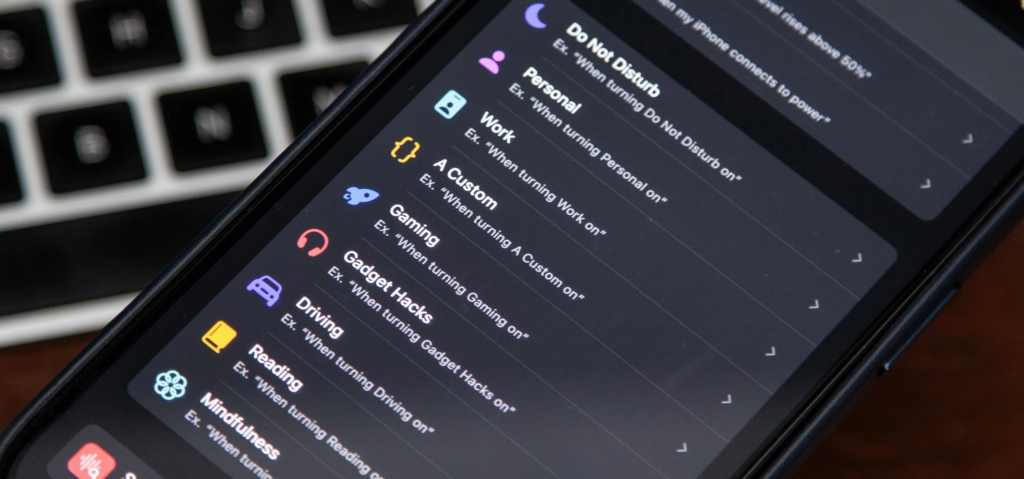
Built-in Focus and Do-Not-Disturb modes allow you to automate how your phone behaves during different parts of the day. Rather than toggling settings manually, configure location or time-based profiles:
- Work Profile: Silences personal social channels and entertainment apps while allowing messages from colleagues and work applications to pass through.
- Personal Profile: Mutes work communication channels after business hours to establish clear boundaries between professional and personal life.
- Sleep Profile: Silences all incoming traffic except for favorited emergency contacts or repeated calls.
System Efficiency and Utility Matrix
| System Feature | Primary Application | Practical Operational Advantage |
|---|---|---|
| Indexed Search | Locating emails, files, settings, and photos | Eliminates manual directory scrolling by searching keywords directly. |
| Voice Dictation | Draft-length text input, notes, and emails | Converts speech to text significantly faster than manual typing. |
| Widget Panels | At-a-glance weather, calendar, and task tracking | Provides essential operational data without launching full apps. |
| Share Sheets | Direct cross-app data routing | Sends files, text, and media straight to target apps in one step. |
| Accessibility Tools | Screen magnification, text scaling, voice control | Improves visual clarity and physical ease of navigation for all users. |
Data Management, Security, and System Maintenance
1. Application Permission Audits
Apps frequently request access to core hardware functions during installation. Over time, these permissions may allow background processes to track location or access system resources without your active knowledge.
Regularly audit these sensitive system permissions:
- Location Services: Change continuous background location tracking (“Always Allow”) to “While Using the App” or “Ask Every Time” for non-navigation software.
- Camera and Microphone: Revoke access for any tool that does not require live media input to perform its primary function.
- Storage and Media Access: Restrict photo access to selected media rather than granting full storage access to third-party platforms.
2. Cloud Backups and Data Redundancy
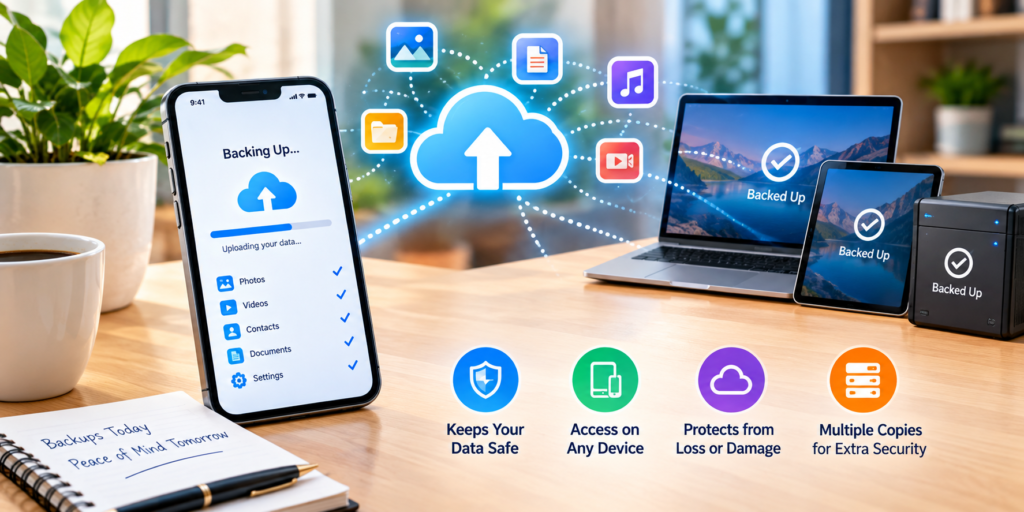
Relying solely on local storage leaves your documents, contacts, and media vulnerable to hardware failure, device loss, or physical damage. Confirm that native cloud backup features are enabled for core system settings, contact lists, and primary repositories. Periodically verify remaining cloud storage space to prevent backups from failing silently due to full quotas.
3. Core Security Hygiene
Maintaining account security across mobile applications requires consistent habits:
- Use a dedicated, secure password manager to generate complex, unique login credentials for every service.
- Enable multi-factor authentication (MFA) on all critical accounts, prioritizing authenticator apps over basic SMS verification.
- Avoid conducting sensitive banking transactions over open, unverified public Wi-Fi networks without encryption.
Utilizing Built-In System Utilities
Before downloading a new application to perform a basic administrative task, check your operating system’s native toolset. Modern devices include powerful pre-installed utilities:
- Document Scanners: Integrated directly into default note-taking and file-management apps, eliminating the need for third-party tools that insert watermarks.
- Screen and Audio Recorders: Built into quick-settings control panels for capturing tutorials, interface issues, or audio memos.
- Search Bar Calculators: Native system search bars can perform unit conversions, currency calculations, and math equations instantly without launching a standalone app.
By removing unused applications, organizing your layout around actual usage patterns, adjusting notification channels, and leaning on built-in utilities, you turn your smartphone into a streamlined tool that supports your daily priorities without causing constant distraction.
FAQs
1. What are app hacks?
App hacks are simple tips and tricks that help you use mobile apps more efficiently.
2. How can app hacks save time?
Shortcuts, search features, voice typing, and useful settings can reduce unnecessary steps.
3. Are app hacks safe?
Yes, when you use built-in features and trusted apps from official sources.
4. How can I make my phone smarter?
Organize your apps, manage notifications, use widgets, and customize useful settings.
5. Should I download more apps?
Not always. Check your phone’s built-in features before installing another app.

Life Experience Stories 2026: Journeys, Lessons & Memories
very person carries a collection of stories worth telling. A compelling life narrative does not…
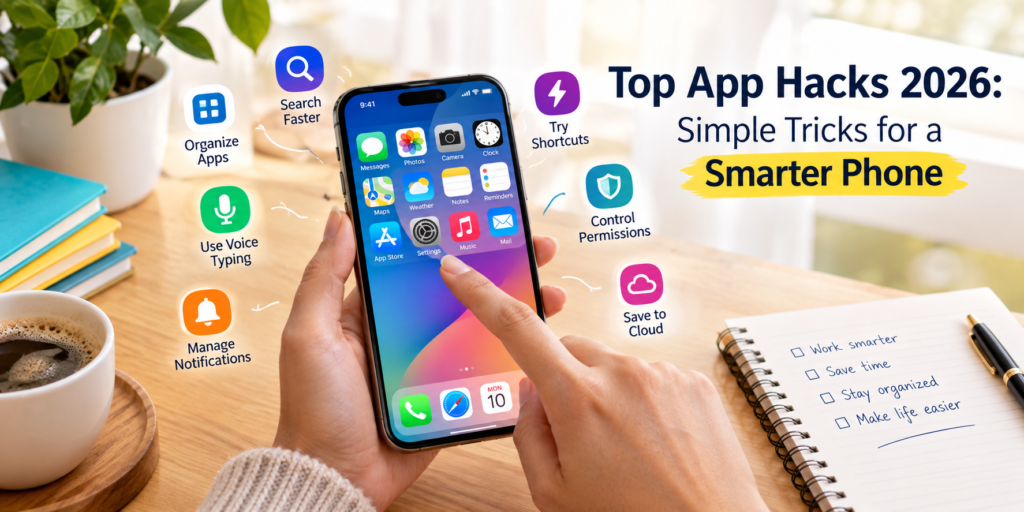
Top App Hacks 2026: Simple Tricks for a Smarter Phone
Smartphones function as the primary personal computing terminal for daily digital interactions. We rely on…
Smart App Hacks 2026: Easy Tips to Make Your Phone More Useful
Smartphones serve as the primary computing devices for millions of people worldwide. We rely on…

Travel Stories 2026: Unforgettable Adventures From Around the World
Travel extends far beyond the logistics of arriving at an intended destination. The true substance…

World Culture Guide: Amazing Traditions, Festivals & Experiences
Every country has its own distinct way of celebrating life. The food people prepare, the…
How Apps Work: The Technology Behind Modern Mobile Apps
Mobile applications are so deeply integrated into daily routines that few people stop to consider…