
Smartphones have become an indispensable part of modern daily life. We rely on them to communicate, manage work tasks, capture memories, navigate unfamiliar streets, handle financial transactions, and store essential personal information. Yet, despite holding these remarkably powerful pocket computers, most people use only a fraction of their actual capabilities.
Making your phone work better for you does not require upgrading to the newest model or filling your storage with third-party applications. Often, a few thoughtful adjustments to your built-in settings and daily habits can transform your device into a far more useful, time-saving tool.
Ditch App Scrolling for System Search
As the number of installed applications grows over time, hunting down a specific app by swiping through endless home screens or app drawers becomes a subtle time sink.
Instead of searching visually, get into the habit of using your phone’s native search bar. A simple swipe opens a universal search tool capable of instantly finding apps, specific contacts, settings menus, text messages, downloaded documents, and web queries. Searching directly for a buried setting—like “battery usage” or “notification history”—bypasses multiple sub-menus, saving valuable seconds throughout your day.
Master Notifications to Protect Your Focus
Constant pings, banners, and buzzes are intentionally designed to hijack your attention. When every application demands immediate priority, your phone transforms from a helpful tool into a continuous distraction.
                  [ Incoming Notification ]
                              │
                              ▼
               [ Is It Actionable & Important? ]
                 ├── YES ──► Keep Priority Alert On
                 └── NO  ──► Mute, Group, or Disable
Take back control of your attention by conducting a notification audit:
- Disable Promotional Alerts: Shopping platforms, food delivery services, and games frequently send promotional nudges that offer zero immediate value. Turn their notification privileges off completely.
- Use Custom Focus Modes: Configure scheduled Do Not Disturb profiles for working, sleeping, or driving. Set strict exceptions so only family members or urgent callers can reach you during these periods.
- Batch Non-Urgent Alerts: Many modern operating systems allow you to group low-priority notifications into a quiet daily summary delivered at a time you choose.
Leverage Built-In Document Scanning and OCR
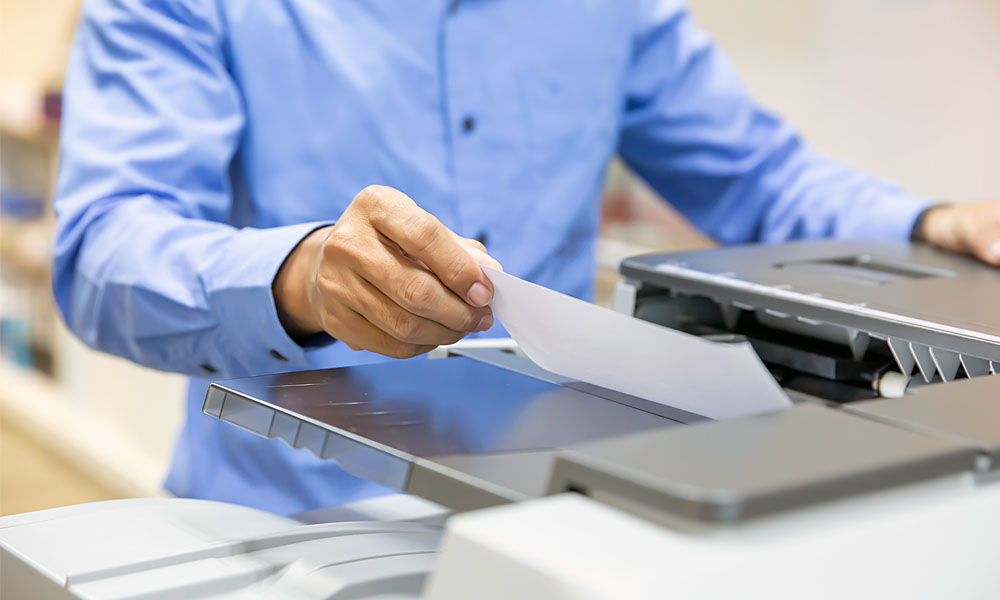
Taking a standard photo of a paper document often yields poor results, complete with awkward shadows, uneven angles, and unreadable text. Modern smartphones include native document-scanning features within built-in notes or file management apps that automatically detect paper edges, flatten perspective distortion, and sharpen contrast.
       [ Paper Document ] ──► [ Native Scanner Interface ]
                                       │
                                       ▼
    [ Edge Detection ] ──► [ Perspective Correction ] ──► [ Clean PDF / Text Output ]
Furthermore, built-in Optical Character Recognition (OCR) allows your camera to read text directly from physical objects. You can point your camera at a physical printout, a wifi password sticker, or a business card, highlight the required words on your screen, and copy them directly into your digital notes or messages.
Customize Quick Settings for Instant Access
The quick settings or control center panel gives you one-swipe access to essential system toggles. However, default factory layouts are rarely optimized for your personal routines.
Spend two minutes rearranging these tiles to match your actual daily habits. If you regularly toggle your mobile hotspot, start screen recordings, turn on the flashlight, or adjust brightness settings, place those specific controls in the top rows where they can be reached with one hand.
Use System-Wide Dark Mode Purposefully
Dark mode swaps bright white backgrounds for dark grays and blacks. While many users prefer the sleek visual aesthetic, dark mode also serves clear functional purposes.
| Display Environment | Recommended Mode | Core Advantage |
|---|---|---|
| Bright Sunlight / Outdoors | Light Mode | High contrast improves screen legibility under direct glare. |
| Low Light / Evening | Dark Mode | Reduces harsh light emission, easing visual strain in dim rooms. |
| OLED / AMOLED Screens | Scheduled Dark Mode | Conserves battery power, as black pixels are turned off completely. |
Setting dark mode to activate automatically from sunset to sunrise gives you high legibility during the day and reduced eye strain at night without requiring manual adjustments.
Automate Quick Tasks with Voice Commands
Typing on a glass screen is not always the most efficient way to input information, especially when you are multi-tasking or on the move. Voice assistants built into modern operating systems have matured significantly, making them ideal for quick, administrative commands.
Instead of navigating through menus manually, use voice prompts to set timers while cooking, schedule calendar meetings, add items to a grocery list, convert currency values, or dictate long text replies. Using dictation for draft text often takes a third of the time it takes to type the same message out by hand.
Turn Your Camera into a Magnifier and Reader
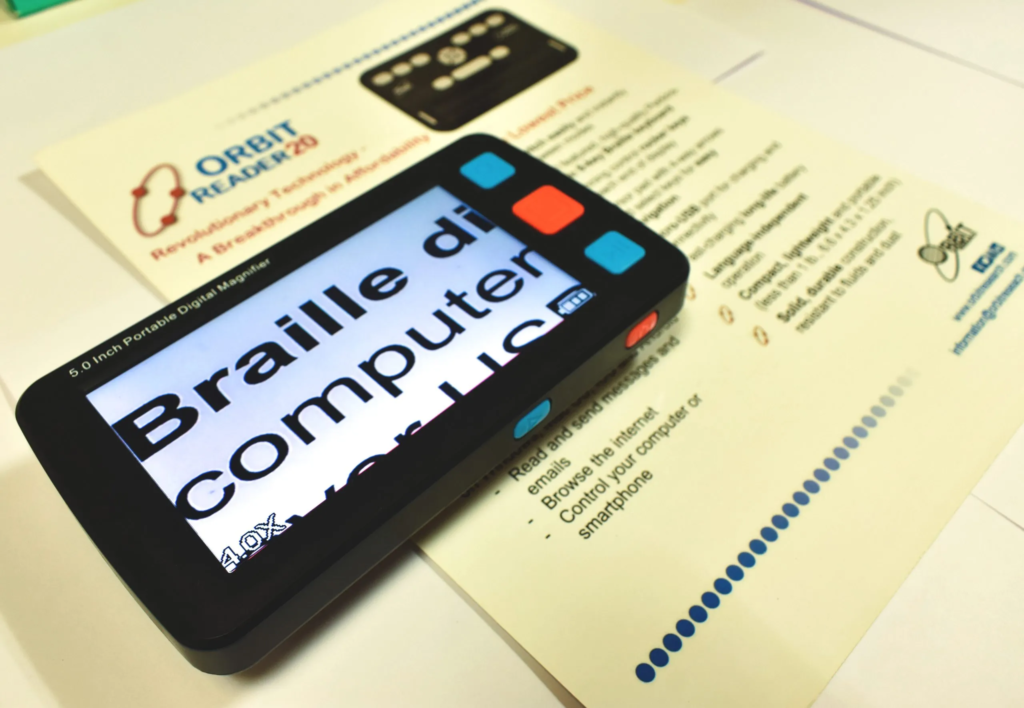
Beyond capturing photography, your phone camera can function as a versatile visual aid. Native accessibility menus often feature a dedicated magnifier tool that allows you to zoom in on tiny print, adjust color contrast, and apply visual filters. This is incredibly helpful when trying to read small serial numbers on electronics, pill bottle instructions, or restaurant menus in dim lighting.
Configure Emergency Profiles and Location Sharing
Emergency features are rarely thought about until an urgent situation arises, making initial setup essential.
Essential Safety Setup Steps:
- Lock Screen Health ID: Add emergency contact numbers, blood type, and allergy information so first responders can access critical details without unlocking your device.
- Emergency SOS Triggers: Learn the hardware button shortcut (such as rapidly pressing the power button five times) that automatically contacts local emergency services and sends your coordinates to selected contacts.
- Temporary Location Sharing: When traveling late or meeting someone new, use native messaging apps to share your real-time location for a set period rather than sending static text updates.
Streamline Device Recovery and Storage Management
Running out of local storage creates unnecessary lag and prevents you from capturing photos or installing critical updates when you need to most.
To maintain a healthy device, configure built-in recovery services like “Find My” beforehand so you can play a loud chime or locate a misplaced device on a map from a computer browser. Periodically clean out temporary downloads, clear cached media inside messaging platforms, and review your screenshot gallery to delete temporary confirmations you no longer need.
Audit App Permissions and System Updates
Protecting your digital privacy and ensuring system stability requires minimal effort when handled consistently.
                         PERMISSION AUDIT MATRIX

  Permission      Recommended Setting          Reasoning
 ─────────────────────────────────────────────────────────────────────────
  Location        "While Using App" or "Ask"   Prevents silent background tracking.
  Microphone      "Ask Every Time"             Ensures recording only when intended.
  Camera          "Ask Every Time"             Blocks unauthorized visual access.
  Contacts        "Restricted / Select"        Keeps personal network data private.
Review your privacy settings every few months to revoke permanent background access for apps that do not genuinely need it. Pair this habit with keeping your phone’s operating system updated. Updates deliver critical security patches, bug fixes, and performance refinements that keep your phone running smoothly for years to come.
FAQs
1. What are phone hacks?
Phone hacks are simple tips and built-in features that make everyday smartphone use easier.
2. How can I save battery on my phone?
Use battery-saving mode, reduce unnecessary background activity, and check which apps use the most power.
3. How can I free up phone storage?
Remove unused apps, duplicate photos, old downloads, and unnecessary large files.
4. Are smartphone settings important for privacy?
Yes. Review app permissions for location, camera, microphone, contacts, and photos regularly.
5. How can I make my phone easier to use?
Customize your home screen, quick settings, notifications, and accessibility features to match your daily needs.